Working With Ironclad CLM
The Ironclad Contract Lifecycle Management (CLM) system streamlines the negotiation process and creates full transparency into negotiations for principal investigators and research administrators. Find more information about Ironclad, including videos and how-to guidance.
To review, negotiate and execute funded and unfunded contracts for sponsored projects, the University of Michigan uses the Ironclad Contract Lifecycle Management (CLM) tool. Ironclad CLM is integrated into the eResearch Proposal Management (eRPM) platform. The software streamlines the negotiation process and creates full transparency into negotiations for principal investigators (PIs) and research administrators.
Contracts negotiated in CLM have all communications and redlines created and available within the software, ensuring up-to-the-minute status information on that agreement. Communications with the PI or primary research administrator related to contract negotiations will be conducted through the CLM system. Status updates are available in eRPM through an integration between the two systems. This page contains resources for learning how to access and work in the system for campus users.
Ironclad also offers on-demand training modules through its Customer Academy (login required). Users can also Ask Ironclad AI for quick, practical support on topics such as how to use specific features or troubleshooting.
Accessing Ironclad and Basic Navigation
How to Respond and Add Comments
How to Add Signature Using Adobe Sign
Account Provisioning in Ironclad
Job aids
How to complete other tasks in the Ironclad CLM
Accessing an agreement and checking the status
Access an agreement record directly from a link in the eRPM record on the main page of a proposal approval form (PAF) or unfunded agreement (UFA), or on the award change request (ACR)/modifications (MOD) tab in the award (AWD).

Seeing assigned agreements
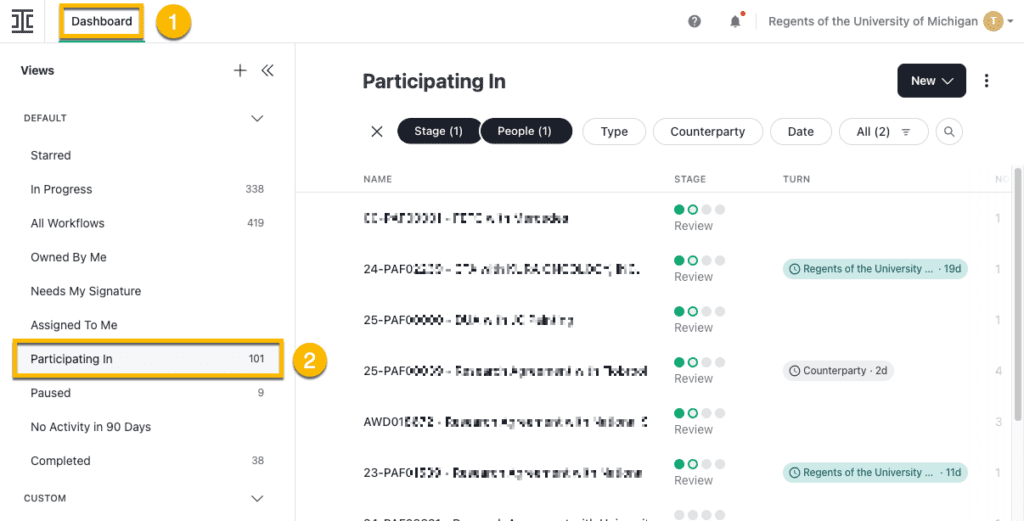
From the CLM dashboard, click on “Participating In” under the “Views” list on the left-hand side of the screen.
Communicating with an ORSP contract officer/award management officer in CLM
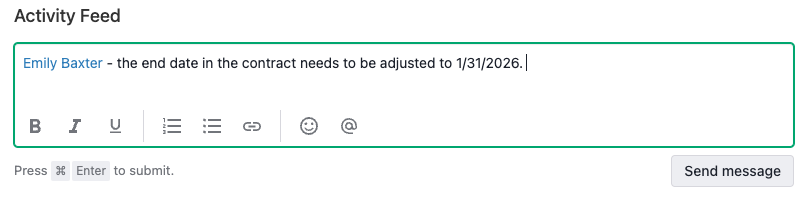
To respond to a comment from the officer or add a comment to the officer in an agreement in CLM, see the steps outlined in the Respond to Comments in Ironclad job aid. Alternatively contact the officer via the Activity Feed in CLM by @ mentioning the name of the person.
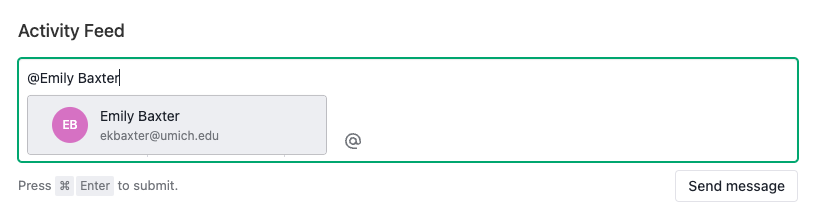
Select the name of the person, type a message, then click “Send message.” The person will receive an email with the message entered.
Reinstating an accidentally cancelled contract
Cancelled workflows cannot be reinstated. If a contract is accidentally cancelled in the CLM, contact the contract officer/award management officer assigned to the project immediately so that ORSP can create a new record for the agreement. Any approvals that were completed on the cancelled workflow will have to be re-obtained.
Finding a copy of the final contract
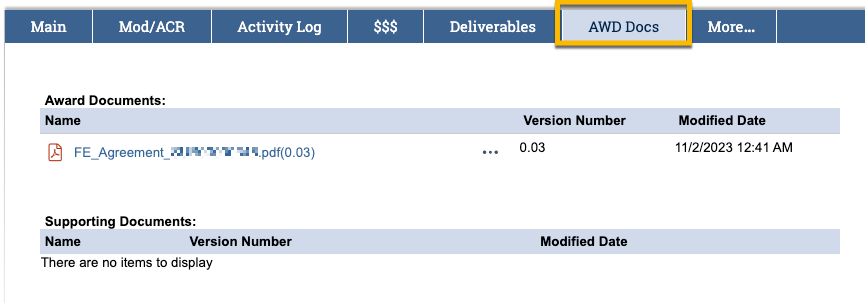
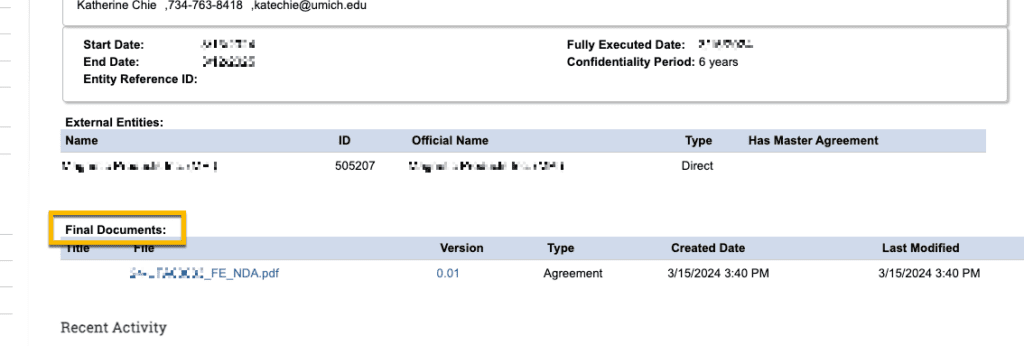
Once the agreement has been fully executed, a copy is uploaded by ORSP to the eRPM AWD or UFA record and can be found in the record’s documents. AWD records will be located in the AWD Docs tab, and UFAs will be located in the documents section on the Main tab.
AWD Docs tab:
UFA documents:
Ensuring coverage on communications during leave
For leave that is two weeks or longer, update the primary research administrator on the eRPM record and contact the contract officer/award management officer assigned to the CLM record to let them know who will be covering the workload. ORSP will provide access to the coverage research administration in the CLM record.
For out of the office instances that are less than two weeks, follow the instructions below to add an email rule so that messages from CLM will be automatically forwarded to the coverage person:
Emails that come from Ironclad
- From: *@mg.ironcladdapp.com
- When establishing the filter, use the above to capture all emails that originate from Ironclad regardless of the specific workflow or eRPM record
Emails that come from AdobeSign, the eSignature software
- From: ORSP Integration via Adobe Acrobat Sign <[email protected]>
- When establishing the filter, include “ORSP Integration via Adobe Acrobat Sign” to avoid inadvertently forwarding other AdobeSign emails.
- Below are examples of subject lines on emails you may receive from Ironclad:
- If CC’d on the request for signature:
- ORSP Integration has copied you on…
- If asked to sign an agreement:
- Signature requested on “[eRPM Record ID…]”
- If CC’d on the request for signature and the agreement is fully executed:
- Completed: You’re copied on [record info]
- If CC’d on the request for signature:
- How to set forward rules: